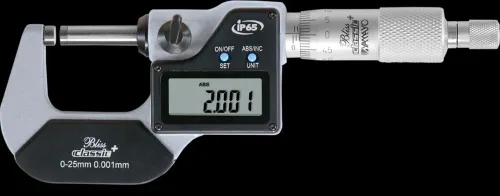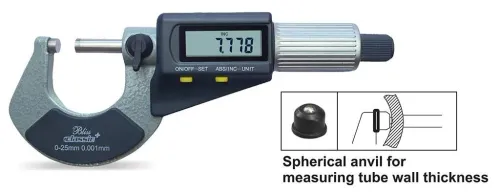

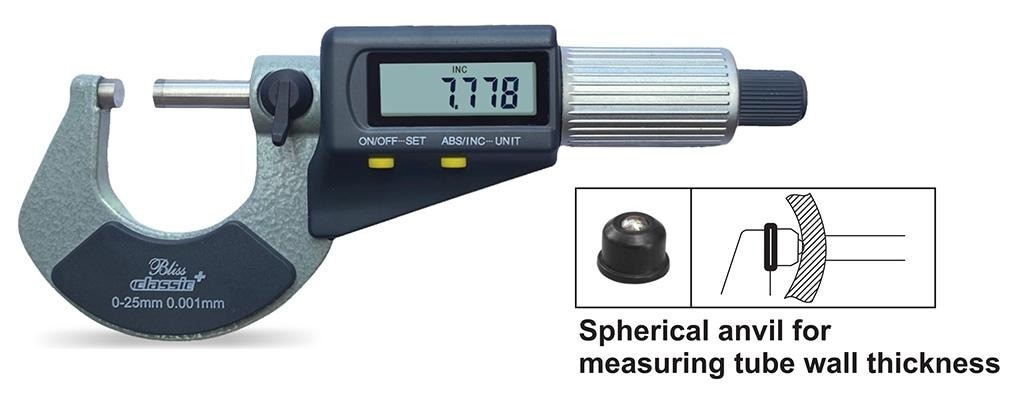
A Bluetooth micrometer can appear in a phone or computer’s device list while still failing to send measurement data. Use a controlled sequence to separate power, pairing, radio, transmitter, application, and dimensional-measurement faults, then document the failed component for efficient service.
Key takeaways
- Replace the specified battery and clean contacts before troubleshooting Bluetooth.
- Forget the old bond, then pair the micrometer with the intended host.
- Confirm whether Bluetooth carries measurements or only establishes a device connection.
- Record model, firmware, battery, host, and failure conditions before requesting support.
Start with power, output mode, and the correct Bluetooth path
A weak battery can make a Bluetooth transmitter remain listed while lacking enough voltage to maintain a connection or transmit a reading. Start by fitting the micrometer’s specified battery with the correct polarity, then clean its contacts and check any separate transmitter battery with a known-good replacement.
- Switch on the micrometer and transmitter, then activate the documented Bluetooth or pairing mode.
- Confirm that the Digimatic output has a compatible transmitter, receiver, cable, or interface adapter; Digimatic output alone is not Bluetooth.
- Read the transmitter label and manual for the approved micrometer family, connector type, power requirement, and supported operating systems.
- Confirm whether the system uses standard Bluetooth pairing or a proprietary receiver and application profile.
- Place the phone, tablet, PC, or receiver close to the micrometer and test discovery before changing software settings or replacing several components.
A transmitter that fits the connector can still be electrically or digitally incompatible. If the instrument remains invisible, isolate power, pairing mode, transmitter, and host radio before blaming the inspection application. This digimatic outside micrometer bluetooth troubleshooting sequence prevents a weak battery or incorrect interface from being mistaken for a failed micrometer.
Clear the old bond and pair the right host in the right order
A digital micrometer Bluetooth connection issue needs a clean bond, not repeated pairing attempts. First identify which device must discover the transmitter: a phone or tablet, Windows PC, receiver utility, or inspection application.
- Remove the micrometer or transmitter from the host’s saved Bluetooth devices. Delete its old bond from the receiver or application too, if that software stores one.
- Restart the transmitter and the intended host, then place the transmitter in its documented pairing mode.
- Start discovery from the specified host and pair only after the old entry has been deleted.
- Record the displayed device name and Bluetooth address so you can distinguish the correct instrument from another unit nearby.
| Host | Correct discovery path | Do not assume |
|---|---|---|
| Phone or tablet | Bluetooth settings or the measurement app named in the manual | A spreadsheet will accept readings |
| Windows PC | Bluetooth settings, USB adapter, receiver utility, or inspection software | A keyboard profile is compatible |
| Proprietary receiver | Enrollment through its receiver or inspection application | It pairs like headphones |
On Android 12 and later, grant the measurement app Nearby devices permission. Earlier Android versions commonly request location access for Bluetooth scanning; denying it can make a working transmitter appear invisible.
Follow the transmitter manual for the approved micrometer family, profile, and application. If the receiver must be enrolled by software, do not pair it through ordinary Windows Bluetooth settings. Test one instrument at a time and verify that the intended name and address appear before taking a measurement.
Separate Bluetooth pairing from measurement-data transfer
Pairing and measurement-data transfer are separate tests. A Connected label proves only that the host and transmitter have established a link; it does not prove that a reading reaches the inspection software.
1. Trigger one reading using the micrometer’s documented data or output control. Check that the application records exactly one value with the expected unit, decimal separator, sign, and resolution. A missing, duplicated, or continuously streaming value points to a transfer or configuration fault.
2. Check the application’s selected receiver, COM port, Bluetooth profile, instrument entry, and measurement format. Confirm that the receiver utility is running and that the micrometer’s data button is being actuated. A wrong Digimatic cable or software listening to another device can leave the screen empty.
3. Confirm that the transmitter is approved for that micrometer model and Digimatic connector. Connector fit alone proves nothing about electrical or protocol compatibility; check the transmitter’s approved instrument list and supported operating system.
4. Isolate one component at a time. Test the micrometer with a known-good compatible cable or receiver, the suspect transmitter with another approved instrument, and the host with another known-good Bluetooth device. For Bluetooth micrometer inspection problems, changing several components together prevents you from identifying the failed part.
If the instrument pairs but the application remains empty, investigate the interface, Bluetooth profile, receiver utility, permissions, and application configuration before repeating discovery or re-pairing.
Stabilise dropouts and prevent the wrong micrometer from pairing
A stable bench connection that fails on the production floor points to distance, obstruction, or radio interference—not automatically to a defective micrometer. Keep a wired or alternate-instrument route available; manually retyping unverified readings creates transcription risk.
1. Move the host within a few metres of the micrometer and transmitter. Repeat one reading with the transmitter away from metal cabinets, machine frames, motor drives, Wi-Fi access points, and other 2.4-GHz equipment. Do not treat nominal Bluetooth range as a guaranteed factory-floor range.
2. Fit the specified known-good battery, confirm polarity, and clean or reseat the contacts. A weak transmitter battery can leave the device listed while failing to sustain a connection or transmit a reading. Repeat the bench test before replacing the measuring instrument.
3. Check sleep timeout settings on the micrometer, transmitter, receiver, and application. A device that powers down between measurements can imitate an intermittent Bluetooth fault.
4. Remove competing saved pairings from nearby workstations and disable automatic reconnection where the software permits it. For multiple instruments, pair one micrometer at a time, verify one test reading, and lock the workstation’s selected device before production.
5. Give every instrument a physical asset label. Match its model, serial number, and Bluetooth address to the application record; rename devices only when the manual and software support renaming, because duplicate names can conceal the wrong unit.
For digital outside micrometer Bluetooth problems in Hyderabad, keep the instrument identified by its serial number rather than relying on a displayed name. Continue production through the controlled wired route until the wireless path passes a documented single-reading test.
Document the fault before requesting instrument or Bluetooth support
Escalate when you have isolated a communication fault, or when a repeatable measurement disagrees with a suitable standard. Re-pairing, replacing a transmitter, or changing an application setting cannot fix dirt on the anvil or spindle, incorrect zero, ratchet problems, temperature effects, wear, or poor calibration.
If readings transfer consistently but the dimension is wrong, stop troubleshooting Bluetooth. Inspect the measuring faces and follow the applicable calibration procedure.
For a communication fault, send the service team this record:
- Micrometer model and serial number; transmitter or receiver model; connector type; host device; operating-system version; application version; receiver-utility version; and battery condition.
- The exact symptom, such as “discoverable but pairing fails,” “connected but no value arrives,” or “one reading arrives and later readings stop.”
- Pairing status, whether the instrument was discoverable, whether one triggered reading reached the application, and the result of a direct wired data test.
- Whether another approved instrument worked on the same host, plus any error message, displayed device name, or Bluetooth address.
For digital outside micrometer support in Hyderabad, send the micrometer with its transmitter or receiver, host device, and relevant cable when possible. Yamayo Instruments can then test the complete communication chain instead of reproducing a false no-fault-found result from the measuring head alone.
Keep production measurements on a controlled wired or alternate route until the wireless path passes a documented single-reading test.
Related product
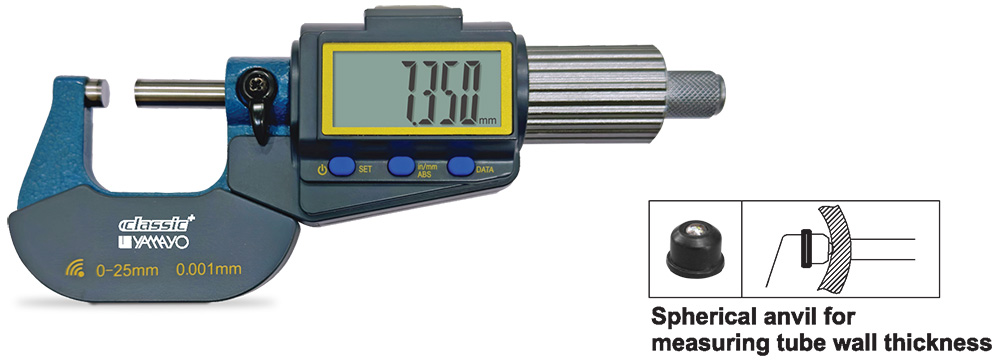 | Micrometers Digimatic Outside Micrometers with Bluetooth Digimatic Outside Micrometers with Bluetooth The Digimatic Outside Micrometer with Bluetooth is a high-precision digital measuring instrument... View product → |
Frequently asked questions
What should I check first when a digital outside micrometer will not connect?
Fit the specified battery with correct polarity, clean the contacts, and replace any separate transmitter battery with a known-good one. Then confirm the output mode and Bluetooth path.
How do I clear an old Bluetooth bond from a digital micrometer?
Remove the micrometer from the host device’s saved Bluetooth or instrument list, switch Bluetooth off and on, then pair the intended micrometer in the manufacturer’s required order.
Does Bluetooth pairing guarantee measurement-data transfer?
No. Pairing can establish a device connection without transferring readings. Check whether the micrometer uses a dedicated receiver, measurement application, virtual serial port, or separate data-output mode.
How can I stop the wrong micrometer from pairing?
Rename or label instruments where the system permits it, pair one micrometer at a time, remove unused saved bonds, and verify the displayed serial number or device identifier before taking measurements.
What information should I provide when requesting digital outside micrometer support in Hyderabad?
Provide the instrument model, serial number, battery type, host device and operating system, Bluetooth path, firmware version, exact error, distance, dropout pattern, and steps already tested.