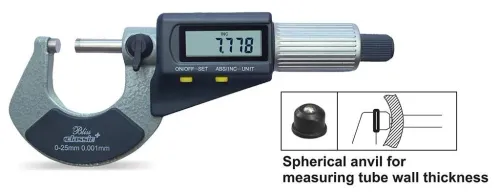

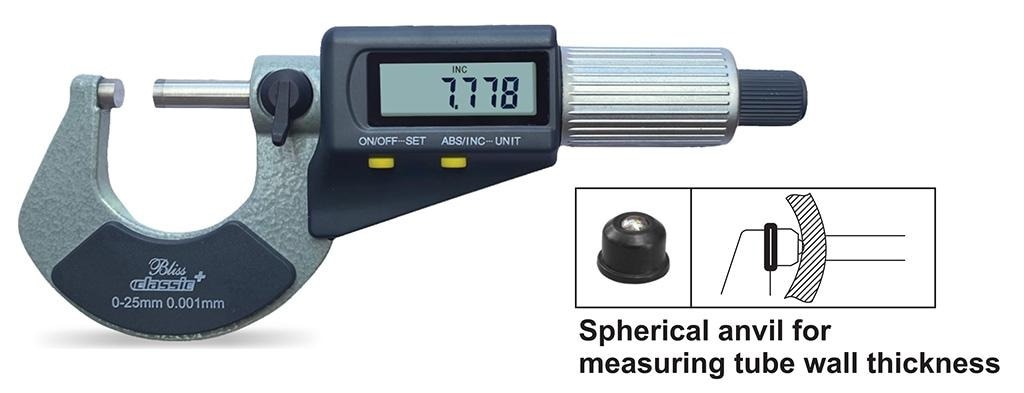
A missing reading does not prove that the micrometer measured incorrectly: the value may still be visible on its display while the receiver, app, spreadsheet, or database drops the transfer. By the end, you will be able to locate the failed stage, restore the connection safely, and test whether your records remain complete under actual Jaipur plant conditions.
Key takeaways
- Compare the micrometer display with the received value before recalibrating.
- Move the receiver clear of metal barriers and check battery voltage.
- Confirm the receiver supports your micrometer’s data protocol and pairing method.
- Use wired transfer when a missing inspection record could release defective parts.
First separate a bad measurement from a missing transmission
The question behind digital outside micrometer Bluetooth for problems in Jaipur is simple: did the instrument make a bad measurement, or did the record disappear afterward? Read the value on the micrometer and compare it with the value received by the tablet, PC, or gateway at the same timestamp.
A correct, stable display with no received record indicates a transmission failure. A changing display, implausible value, or poor repeatability points first to the instrument, contact technique, temperature, or the workpiece.
Run the check in this order:
- Measure a calibrated reference or known test piece three times and record each displayed value.
- Send each value while watching for the application’s receipt or confirmation.
- Compare the micrometer sequence with the application’s stored sequence, not just the final screen.
- Check whether the session paired successfully, the receiver was already connected elsewhere, or the application rejected a duplicate or expired after sleep.
- Repeat with a fresh battery and the receiver nearby, outside a metal cabinet or enclosed inspection area.
- If the display is correct but one sequence number is missing, classify it as bluetooth micrometer data loss rather than a dimensional error.
A Bluetooth link normally detects and retransmits corrupted packets; it should not silently turn 25.004 mm into 25.014 mm. The more likely failure is a missing record caused by disconnection, buffer overflow, application timeout, battery shutdown, or moving to the next part before acknowledgement. Preserve the display reading and event time before restarting anything.
Check power, range, metal obstruction, and Jaipur’s radio environment
A Bluetooth micrometer can keep showing a correct value while its radio drops the transfer. The main causes are low battery voltage, excessive distance, metal blocking the path, and interference in the crowded 2.4 GHz band. These are common digital micrometer bluetooth issues, not proof that the measurement itself is wrong.
| Condition | What happens | Check on the shop floor |
|---|---|---|
| Battery | The display works, but the radio resets or misses transmission | Test battery age, voltage under load, sleep timeout, and wake-up behaviour |
| Distance or obstruction | Metal racks, cabinets, machine guards, and enclosed inspection rooms weaken the signal | Repeat the transfer beside the receiver, then at the normal workstation |
| Radio congestion | Wi-Fi access points, scanners, Bluetooth tools, Zigbee devices, cordless equipment, or microwave equipment create retries | Compare results at different times and with nearby wireless equipment paused |
| Contamination or heat | Dust, coolant, oil, heat, or damaged contacts interrupt power or operation | Inspect the connector, switch, battery compartment, and seals; do not clean only the measuring faces |
- Keep the receiver within the tested plant range; a catalogue range does not account for steel structures or operator movement between the shop floor and quality laboratory.
- Check whether another operator or receiver already holds the connection, and whether direct sunlight makes the display appear active when the instrument has entered sleep.
- Do not confuse a thermal measurement error with a wireless failure: let the micrometer, workpiece, and reference standard reach a controlled temperature, and avoid warming the frame with your hand.
- Confirm that “Digimatic” identifies the instrument interface, not Bluetooth itself; verify the adapter, pairing method, and operating-system support.
Identify the receiver and verify compatibility before blaming Bluetooth
Start by naming every link in the chain: micrometer, wireless adapter or integrated radio, receiver, inspection application, export file, and database. A Digimatic outside micrometer in Jaipur is not automatically Bluetooth; “Digimatic” usually identifies a digital interface and connector family. Confirm the exact interface, compatible adapter, pairing method, and supported Android, Windows, or iOS version.
1. Check the micrometer locally. Repeat a reading against a suitable setting standard or gauge block and compare its display with the value received by the tablet or PC. A matching display and missing record points away from the measuring mechanism.
2. Check the receiver. Confirm that the correct adapter or gateway is powered, discoverable, paired to this instrument, and not already connected to another operator’s device. Record whether failure occurs during discovery, pairing, or transmission.
3. Check the application. Send three numbered readings and verify that each appears under the correct work order. Look for a required confirmation key, duplicate-value rejection, session timeout after sleep, or a queue that does not retain readings during disconnection.
4. Check storage and export. Compare the application’s received sequence with its saved database rows, CSV file, or server record. If the application shows all three values but the database shows two, the failure is after reception.
Ask for connection logs and timestamps before replacing the micrometer. This evidence identifies the failed layer instead of turning a receiver or software defect into an unnecessary instrument claim.
Use a controlled recovery sequence and a point-of-use acceptance test
After a disconnect, do not immediately repeat the measurement and overwrite the evidence. Photograph or record the micrometer display, instrument identity, time, work-order number, and last accepted reading; then trace the value through the receiver, application import, spreadsheet export, and database.
- Stop measuring and mark the next reading as a recovery check.
- Confirm the displayed value, battery condition, sleep state, and instrument identity.
- Reconnect the receiver without pairing a second operator’s device. Check that the application shows the correct work order.
- Send one deliberate test reading and confirm its value, timestamp, sequence position, and instrument ID in the stored record.
- If it fails, restart only the failed layer: wake the micrometer, reconnect the adapter, reopen the application, or restore the receiver. Do not reset every component at once.
- Reconcile the last transmitted sequence with the application’s stored sequence before production resumes. Record any missing or duplicated value instead of silently remeasuring it.
A point-of-use trial proves whether Bluetooth micrometer data loss is a radio failure or a receiving-workflow failure. Run several hundred consecutive measurements at the Jaipur workstation, including normal operator positions, doors open and closed, nearby Wi-Fi traffic, low-battery operation, sleep/wake cycles, and temporary receiver obstruction.
Pass the trial only when every transmitted value appears once, in order, under the correct instrument and work order, with timestamps intact. Test disconnection recovery too: a known queued reading must either arrive once after reconnection or generate a visible exception. This acceptance record exposes recurring digital micrometer Bluetooth issues before they reach inspection reports.
Protect inspection records and decide when wired data is safer
Every missing reading must become an exception, not a blank cell. Require a measurement ID, instrument ID, timestamp, operator or job number, and transmission status for each record. Reconcile the micrometer’s completed-measurement count with the application’s received count before releasing the inspection report.
Use these controls to expose silent failures:
- Compare the displayed value with the received value during recovery; a matching display proves the measurement survived locally, not that the record was stored.
- Reject duplicate IDs and flag skipped sequence numbers automatically.
- Keep a retry queue and an audit log showing pairing loss, rejected imports, manual entries, and database errors.
- Require a supervisor review for every manually re-entered value.
A missing record is not automatically evidence of micrometer inspection problems. If the display is stable and a calibrated check passes, investigate the data path first.
| Option | What it means | When it applies |
|---|---|---|
| Wireless | Bluetooth sends readings directly to a nearby receiver | Use where cables obstruct movement and the point-of-use test produces zero missing or duplicate records |
| Digimatic cable or USB interface | A physical connection carries each reading | Choose for fixed benches, enclosed metal areas, or inspections where one lost value is unacceptable |
| Gateway | A dedicated receiver buffers instruments and forwards controlled records | Choose when several micrometers feed one system, operators move between zones, or the tablet cannot provide reliable pairing and storage |
For a digimatic outside micrometer in jaipur, ask Yamayo Instruments to confirm the exact connector, Bluetooth adapter, gateway, operating system, buffering behaviour, and cable alternative before purchase. Select wired transmission when recovery depends on operator memory rather than an automatic queue.
Related product
Frequently asked questions
How do you tell a bad micrometer measurement from missing Bluetooth data?
Compare the value shown on the digital outside micrometer with the value received by the tablet, PC, or gateway at the same timestamp. Matching values indicate a transmission or record-logging failure; different values require measurement checks.
What causes digital micrometer Bluetooth issues in a Jaipur plant?
Check battery condition, distance, metal obstructions, receiver placement, and nearby 2.4 GHz activity from Wi-Fi access points, industrial devices, and other Bluetooth equipment.
How do you verify Bluetooth micrometer compatibility?
Identify the receiver, interface, pairing method, supported data protocol, and software version. Confirm that the receiver accepts the micrometer’s output instead of assuming every Bluetooth adapter is compatible.
When is wired data safer than Bluetooth micrometer data transfer?
Use a wired connection when inspection records control product release, traceability, or customer documentation and a lost transmission could leave a measurement unrecorded. Apply a point-of-use acceptance test before relying on wireless transfer.
Related product
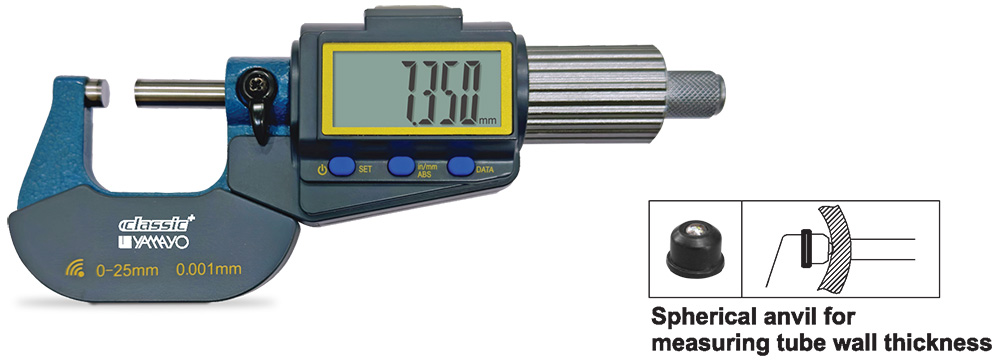 | Micrometers Digimatic Outside Micrometers with Bluetooth Digimatic Outside Micrometers with Bluetooth The Digimatic Outside Micrometer with Bluetooth is a high-precision digital measuring instrument... View product → |